Inventory
Find every line, seat, circuit and device you pay for, see who uses it and what it costs, and keep its name, status, location and owner up to date.
In the app:Inventory Conduit check
On this page
The inventory is the list of everything you're billed for: mobile lines, landlines, phone numbers, PBX seats and extensions, SIP and PRI trunks, circuits, internet and devices. It fills itself in as you post bills. Every billed line becomes an inventory item you can name, tag, place on a location and assign to a person.
Use the two tabs at the top to switch between Carrier inventory and the Conduit check.
Find a service
Select Inventory in the side menu. The list is sorted by monthly cost, most expensive first. Select Monthly to flip the order.
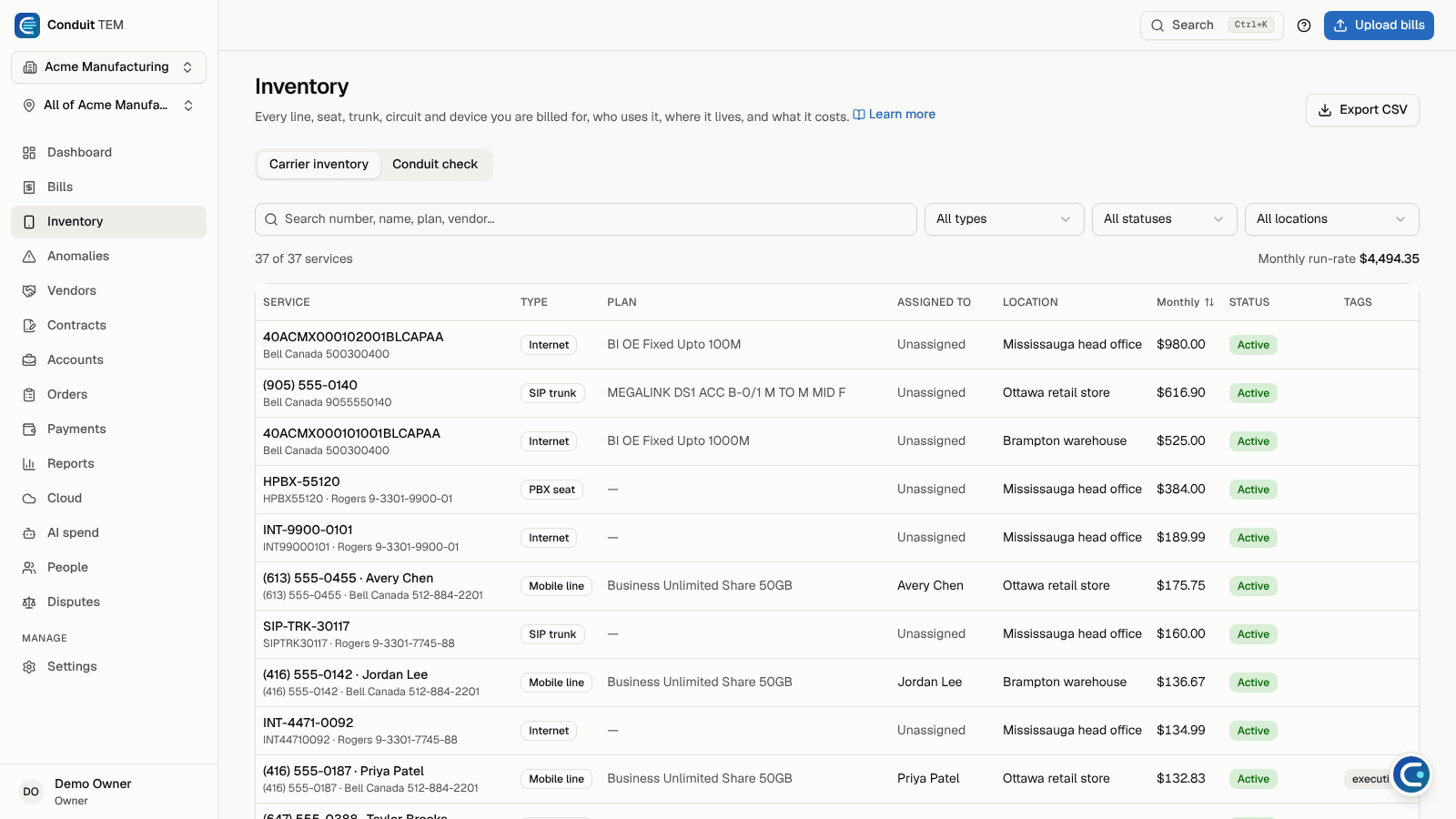
To narrow the list:
- Search by number, name, plan, vendor or account.
- Filter by type (Mobile line, Landline, Phone number (DID), PBX seat, Extension, SIP trunk, PRI trunk, Circuit, Internet and more). PRI trunk covers ISDN PRI service such as Bell's Megalink (Mégaligne); Conduit TEM recognises it on bills in English and French.
- Filter by status (see below).
- Filter by location, or choose Not placed to find services without one. This filter only appears when your company has more than one location.
Above the table you'll see how many services match and the Monthly run-rate: the monthly cost of the active and unconfirmed services in the list. Services billed in another currency are shown beside the total, never converted.
What the statuses mean
| Status | Meaning |
|---|---|
| Active | On a posted bill and in use. |
| Unconfirmed | Seen on a bill that isn't posted yet, or added by an import. It turns active when a bill showing it is posted. |
| Suspended | Temporarily suspended with the carrier. |
| Disconnected | Cancelled. It stays in the inventory for history. |
A Not on latest bill badge means the service is active here but didn't appear on its account's most recent bill. It may have been disconnected, or moved to another account. Choose Not on latest bill in the status filter to list them all.
Open a service
Select a row to open the service sheet. It shows the monthly cost, plan, the name printed on the bill, the device and its monthly instalment, and the service address and sub-account printed on the bill, when there are any.

Anyone except viewers can change:
- Type and Status.
- Display name, for example "Reception main line".
- Location: where the service lives. Future bills keep this choice; bills already posted keep the location they had.
- Assigned to: the person who uses it. Choose Add a person… to create someone on the spot; they're assigned right away.
- Tags, such as "shared line" or "candidate to cancel". Type a tag and select + to add it.
- Notes: what it's for, who asked for it, anything the next person should know.
Changes save as you make them. The sheet also lists any Add-ons billed on the line.
Ask the carrier for a change
From the service sheet, select Request a change and choose Upgrade, Plan change, Move, Suspend or Disconnect. This starts a carrier order already filled in with the service. See Carrier orders.
For a mobile line, Travel pass asks your account manager for a travel pass or roaming add-on before a trip. See Travel passes.
Changing a line's Location is noted for your account manager's weekly digest of location and cost centre changes, when your organization has it on (Your account manager).
Export the inventory
Select Export CSV at the top of the page to download the inventory as a spreadsheet. The export follows what you can see: if the location switcher is set to one location, or your access is limited to part of the company, only those services are included.
Where services come from
- Posted bills create and update services. A number that appears on a bill for the first time is added as unconfirmed, then becomes active when the bill is posted.
- Imports can add services you already track elsewhere. See Import your history from another system.
- People imports from a phone system can add extensions. See Import people from HR or your phone system.
There's no button to add a service by hand: services come from bills and imports, so the inventory always matches what you're billed for.
Compare billing with Conduit
When your Conduit account manager has connected the organization, open Inventory → Conduit check. Conduit TEM compares the current carrier inventory with the phone systems, trunks, numbers, handsets, extensions and circuits documented in Conduit.

The check flags:
- Billed but not documented: a line, number, trunk, seat or circuit appears in the carrier inventory but not in Conduit. Its current monthly cost is the amount at stake.
- Documented but not billed: an item remains in Conduit but does not appear in current carrier billing. Confirm whether it was disconnected, moved to another bill or should stay documented.
- Count mismatch: a documented DID, line or seat count differs from the carrier count. A trunk billed as a block of DIDs is compared even when the carrier does not list every number.
High, medium and low labels show where to start. Monthly cost at stake adds billed amounts in your base currency; another currency is shown separately and never converted. Select Sync now if you are an owner or admin and need a fresh check before the daily refresh.
The comparison uses only carrier accounts whose account number is also documented in Conduit. Mobile lines are left out unless that exact number is documented. DID blocks and seat totals are compared as counts, so one missing block does not create a finding for every number or handset. If the last successful comparison is more than three days old, refresh it before acting on the findings.
The connection, service token and internal customer link are staff-only. Organization members see the useful differences, never the credentials or setup details.