Review and post a bill
Check what Conduit AI read from a bill, fix anything it got wrong, place charges in the right locations and post the bill so it counts.
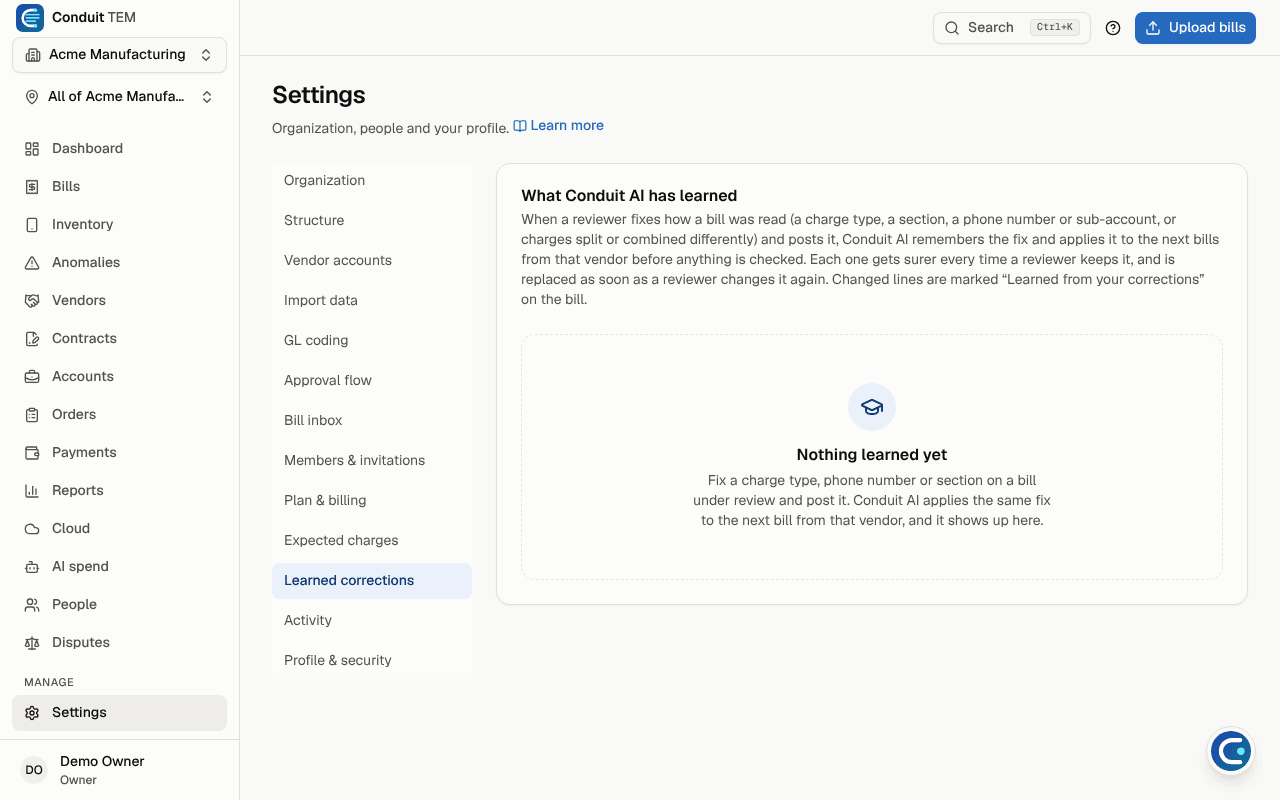
In the app:Bills Learned corrections
On this page
- Open a bill for review
- Read the header
- Read the bill in brief
- Work through the warnings
- Check the totals add up
- Fix the invoice details
- Fix the charge lines
- Place charges in locations
- Post the bill
- When a bill needs an approver
- Void a bill
- Delete a voided bill
- How Conduit AI learns from your corrections
- Related guides
When Conduit AI has read a bill, it waits for a person to check it. Reviewing takes a minute or two for a clean bill: look at the warnings, confirm the totals add up, fix anything that was misread and post it. Posting is what makes the bill count in your spend, inventory, reports and findings.
Owners, admins, finance and analysts can review and post. Viewers see the same screen read-only.
Open a bill for review
- Go to Bills. Bills waiting for you show Needs review, or a red blocking count when something must be fixed first.
- Select Needs review above the list to see only those bills.
- Select a bill to open it.

On a computer, the original bill sits on the left so you can compare as you go. On a phone, open the Document tab to see it.
Read the header
The top of the page shows the vendor and invoice number, the status, the account number, the billing period and the due date. It also shows Conduit AI confidence: how sure Conduit AI is that it read the bill correctly. Bills read from a carrier spreadsheet say Read from the carrier's spreadsheet, no AI needed instead.
Under that, a line says how the bill arrived: Uploaded by and who, Emailed to your bill inbox by the sender with the email's subject, or From the public bill check. A receipt that came as the email itself, with no PDF, adds read from the email text: the document on the left is the email, saved as a page.
The buttons on the right are:
- Tour: a short guided tour of this screen, one part at a time. Use Next and Back or the arrow keys, and Esc to close it. It shows on bills waiting for review.
- Export lines: download the bill's lines as a CSV file.
- Re-extract: have Conduit AI read the bill again from scratch, including which vendor and account it belongs to (a bill you uploaded into a chosen account stays there). Use it when much of the bill was misread; for a few mistakes it's quicker to fix them by hand.
- Post invoice: post the bill. It reads Approve and post when the bill needs an approver and you are one, or shows how many blocking items are left.
- Void: take the bill out of your spend (finance, admins and owners only). See Void a bill.
Read the bill in brief
At the top of the Summary tab, In brief sums up the bill in a few sentences, written by Conduit AI: what it covers, what it comes to and how that compares with the account's previous bill, and why it changed (a new or cancelled service, one-time charges, roaming or usage above the plan, credits, a late fee).
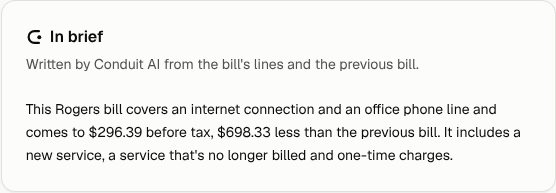
Bills read before this was available show Explain this bill instead. It writes the summary and explains every service and line in everyday words.
Work through the warnings
If anything needs a look, a card at the top lists it. It's titled Fix these before posting when something is blocking, or Worth a look when there are only warnings.
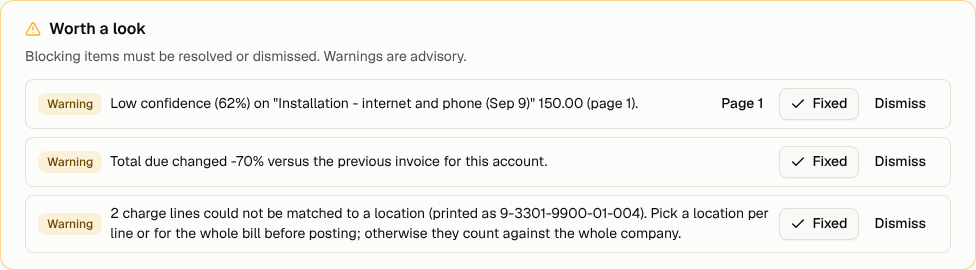
- Blocking items stop you from posting, for example when the total due wasn't found, the lines don't add up to the bill's own totals, or the document isn't a telecom bill at all (an electricity or water bill uploaded by mistake). Fix the cause, then select Fixed, or select Dismiss if it doesn't matter.
- Warnings are advice. Typical ones: a line Conduit AI read with low confidence, a total that changed a lot since last month, a new vendor account (account numbers are matched ignoring spaces, dashes and case, so "531-724-197" is the same account as "531724197"), no account number found on the bill (such bills never post automatically), or lines that couldn't be matched to a location.
- Bills that print no billing period get one from their charges: the dates the monthly charges cover, or else a month from the bill date, since carriers bill monthly service in advance. Correct it under Invoice details if a bill works differently.
- Some carriers, Bell Mobility among them, print no invoice number. Such a bill is filed under its bill date and gets a warning, not a blocking item.
- Many bills print the same charges more than once: a summary on the first page, then the detail. Conduit AI counts each charge once and leaves out sections that only repeat charges listed elsewhere, so Does it add up? compares like with like.
- When a warning mentions a page (or a row, for a spreadsheet), select Page to jump the original bill to that spot.
Check the totals add up
On the Summary tab, Does it add up? compares the lines Conduit AI read with the bill's own current charges. A green tick and a difference of $0.00 mean every charge was captured. Bills that print their current charges before a credit or rebate (for example a discount shown on its own line) add up too.
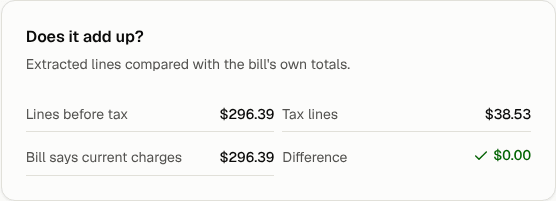
If there's a difference, look for a missed or misread line on the Lines tab. See The totals don't match.
Fix the invoice details
The Invoice details card on the Summary tab holds the invoice number, dates, currency and the bill's totals. Correct anything that was misread and select Save details. Changes apply to this bill only.
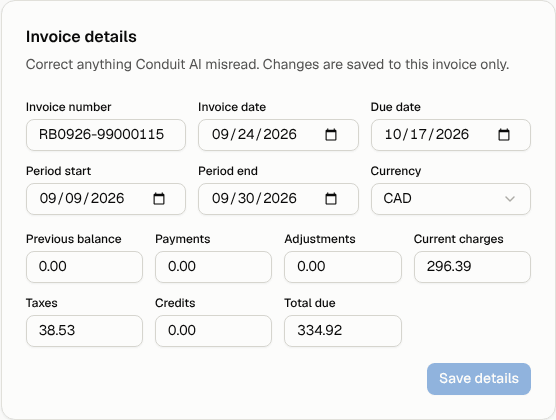
Below it you'll find any Anomalies on this bill and a Notes box where you can leave a note for the next person ("Asked Rogers about the installation fee").
Fix the charge lines
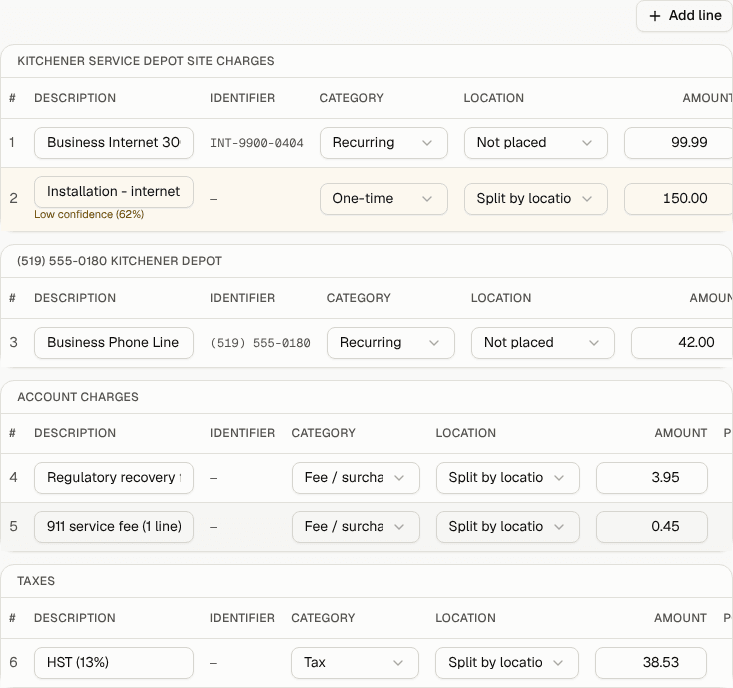
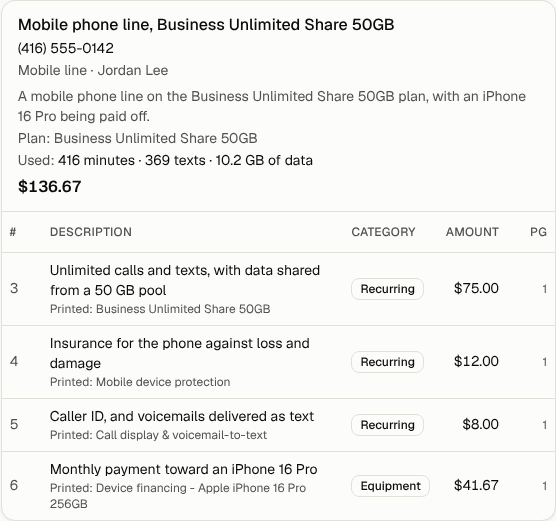
Open the Lines tab to see every charge, grouped by service. Each phone line, internet connection or phone system gets its own group with everything that belongs to it: the plan, add-ons, the device being paid off and any pay-per-use charges. The group shows what the service is in everyday words with a sentence about it (for example "Mobile phone line, unlimited plan: a work phone on a shared 50 GB plan, with an iPhone 16 Pro being paid off"), its number or circuit, who it's for, its plan, what was used this period and its total. Charges for the whole account (fees, taxes, discounts) come last. A service is described again only when what it's billed for changes.
Conduit AI also writes each charge in everyday words, with the carrier's printed wording underneath (Printed:). For example, "BI OE Fixed Upto 1000M - Speed: 500M" becomes "Fibre internet, 500 Mbps".
-
As printed shows the lines in the sections the carrier prints instead; By service goes back.
-
Show printed wording shows the carrier's descriptions only; Show in everyday words goes back.
-
Bills read before everyday wording was available have an Explain in everyday words button. Each carrier's wording is explained once and reused on later bills.
-
Disputes, exports and accounting keep the carrier's printed wording.
-
Edit a line's description, category, location or amount right in the table. Each change saves when you leave the field. Editing the printed description clears its everyday wording; Explain in everyday words writes it again.
-
Low confidence under a description means Conduit AI wasn't sure about that line. Compare it with the original.
-
Select the page number on a line to jump the original bill to it.
-
Add line adds a charge Conduit AI missed. Enter the description, amount, category and, if it belongs to a phone number or circuit, its identifier.
-
The bin icon deletes a line that shouldn't be there.
A Usage tab appears when the bill lists calls, data or messages by number.
Turn everyday wording off
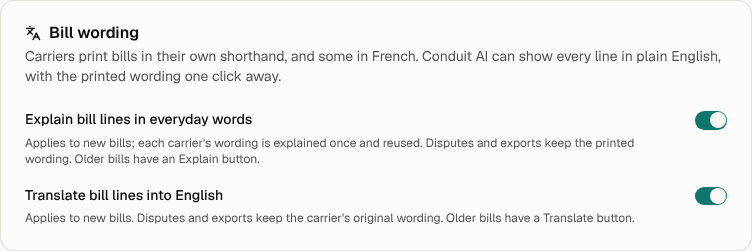
Owners and admins can turn it off under Settings → Bill wording → Explain bill lines in everyday words. New bills then show lines as printed; bills already explained keep their wording.
Place charges in locations
If your company has more than one location or division, Locations on this bill shows how much of the bill belongs to each, and how much is Not placed yet.
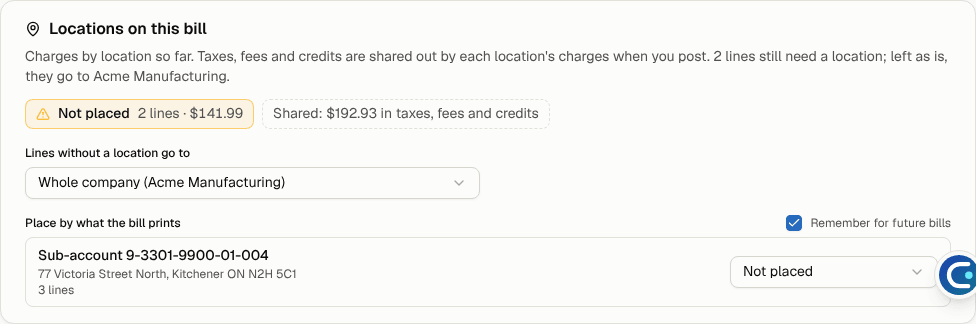
- Choose a location per line in the Location column of the Lines tab, or place every line printed with the same sub-account or service address at once under Place by what the bill prints.
- Lines without a location go to sets where anything left unplaced counts. By default that's the account's default location or the whole company.
- Owners and admins can tick Remember for future bills so lines printed the same way go to that location automatically next time. Remembering adds a placement rule, part of company structure, which every plan includes.
- Taxes, fees and credits show as Split by location. When you post, they're shared out by each location's charges.
Move a bill to a location
A bill that came in before you created its location sits at the company level. Select Move to a location on Locations on this bill, choose the location and confirm with the Move to … button. Lines already placed on another location stay where they are. You can also tick:
- Move its lines in inventory too: the phone lines and services on this bill that are still at the company level.
- Send future bills from this account here: makes it the vendor account's default location (needs Vendor accounts and inboxes).
This works on posted bills too: their spend, findings and reports then count at the new location. Moving a bill in review needs Review bills; moving a posted bill needs Company structure (owners and admins by default). Every move is recorded in the activity log.
See Company structure for setting up locations.
Post the bill
When the warnings are handled and the totals add up, select Post invoice. Only a bill that is still marked Needs review can be posted; an older tab cannot post it again after it has been posted or voided. You'll see "Invoice posted". Posting:
- adds the bill to your spend, dashboard and reports;
- updates your inventory of lines and services from the bill;
- runs the checks that look for overcharges and other findings;
- teaches Conduit AI from your corrections (see below).
A posted bill can't be edited any more. If it's wrong, void it.
When a bill needs an approver
Owners and admins can set an approval threshold under Settings → Organization → Approvals and auto-post. Bills at or above that amount can only be posted by Finance, an admin or an owner, and show a Needs an approver card.
Conduit TEM keeps this control in place when someone corrects a bill: it checks the saved bill total, the charge-line total and the total originally read from the bill. It remembers the highest of those amounts while the bill is under review, including when the bill is re-extracted. Lowering the header or lines later does not turn an above-threshold bill into one that an analyst or auto-post can post.
The threshold is in your organization's base currency. A bill in another currency needs an approver because it cannot be safely compared without an agreed exchange rate. An older bill whose original read is unavailable also needs an approver when the threshold is on. A bill whose currency was changed during review also always needs an approver.
- If you're an analyst, review the bill as usual, then select Request approval. Finance, admins and owners get an email, and the button changes to Approval requested.
- If you're Finance, an admin or an owner, check the bill and select Approve and post.
The Bills page lists these bills under Needs an approver so they're easy to find.
Void a bill
Finance, admins and owners can void a bill that shouldn't count, such as a test upload or a bill for another company. Select Void, then Void invoice. A voided bill is left out of your spend and findings; the original file is kept. If the bill was waiting for approval, approved or already sent to accounts payable, its payment goes On hold with the note "Bill voided": approvers get no more reminders, and if AP opens the pay link, the page tells them the bill was cancelled and not to pay it.
Note: Uploading the very same file again is skipped as a duplicate, so void only when you're sure. If a bill was simply misread, use Re-extract or fix it by hand instead.
Delete a voided bill
Admins and owners can remove a voided bill for good, for example a bill that was never yours or a duplicate upload. Open the voided bill, select Delete permanently, then confirm. The bill, its lines, findings and notes, and the uploaded file are deleted, along with lines in Inventory that only this bill added and nobody confirmed. Deleting can't be undone; the activity log keeps a record of who deleted which bill.
A voided bill with a dispute, or one that was sent for payment or paid, can't be deleted: it stays voided so that history is kept.
How Conduit AI learns from your corrections
When you post a bill you corrected, Conduit AI remembers certain fixes and applies them to the next bills from that vendor, before anyone looks at them. It learns when you:
- change a line's charge type (category) or section;
- fix a line's phone number, circuit or sub-account;
- combine several lines into one, or split one line into several.
One-off fixes to amounts and descriptions aren't learned, and nothing is learned from bills that posted automatically.
On later bills, lines it changed are marked Learned from your corrections. Hover over the mark to see what changed. If a learned fix is wrong, correct the line; Conduit AI learns from that too and replaces the old fix.
Owners and admins can see and delete everything Conduit AI has learned under Settings → Learned corrections.