Inventory fields
See the details each service type keeps, like an internet service's circuit ID and static IPs, and add custom fields of your own.
In the app:Inventory fields
Every service in your inventory can hold details a bill rarely prints: an internet service's circuit ID, speeds, static IPs and demarc; a SIP trunk's channels; a phone number's 911 address and where it rings. Each service type comes with its own built-in fields. If you track something they don't cover, such as a cost code or a site contact, add a custom field.
Conduit AI reads every field, and inventory exports include them.
See the built-in fields
Go to Settings and choose Inventory fields. Open Built-in fields by type to see what each type already offers. Check here before adding a field of your own: a custom field can't have the same name as a built-in field on the same type.
Everyone can look at this page. Changing custom fields needs the Custom inventory fields permission, which owners and admins have and which can be given to a custom role (see Roles and groups).
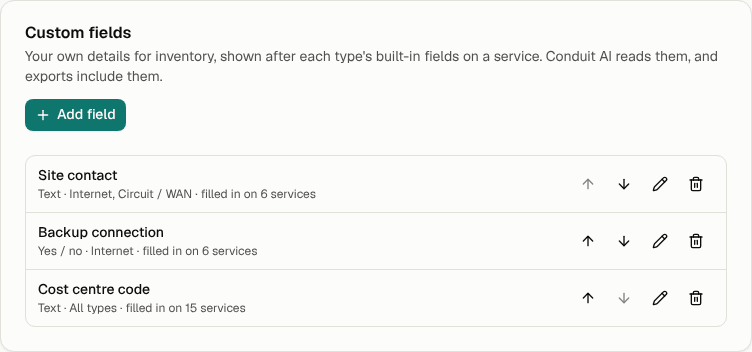
Add a custom field
- Select Add field.
- Type a Name, for example
Cost code. - Choose the Kind of value: text, number, date, pick from a list, yes / no, IP address or range, or MAC address. Values people enter are checked against it. The kind can't change once the field exists.
- For Pick from a list, add the choices (up to 30).
- Under Shows on, keep All types or pick the service types the field belongs to.
- Select Add field.

The field now shows on each matching service, after the type's built-in fields. An organization can have up to 50 custom fields.
Note: Fields for passwords, PINs, logins, keys or tokens are refused. Conduit AI reads these fields and exports include them, so keep credentials in a password manager.
Change, reorder or delete a field
- Select the pencil to rename a field, change its choices or the types it shows on. Removing a choice keeps the value on services that already have it, until someone changes it; Conduit TEM tells you how many services that is.
- Use the up and down arrows to set the order custom fields appear in.
- Select the bin to delete a field. Conduit TEM first shows how many services have a value in it. Deleting the field removes those values too, and they can't be brought back.