Your profile and contact details
Change your name, add your job title and phone number for your colleagues, see your sign-in email, change your password and pick light or dark.
In the app:Profile & security
On this page
Everything about you, rather than your organization, is on Settings → Profile & security: your name, your job title and phone, your sign-in email, your password, two-step verification, email notifications and light or dark mode.
Add your job title and phone
Your job title and phone are optional. Add them if your colleagues should know what you do and how to reach you, for example when they approve a bill you sent for approval.
- Go to Settings → Profile & security.
- On the Profile card, enter your Job title, such as "Accounts Payable Lead".
- Enter your Phone the way you normally write it:
416-555-0100,(416) 555-0100or+1 416 555 0100all work. For an extension, addext.orxand the number, such as416-555-0100 ext. 22. Outside Canada and the US, start with+and the country code. - Select Save.
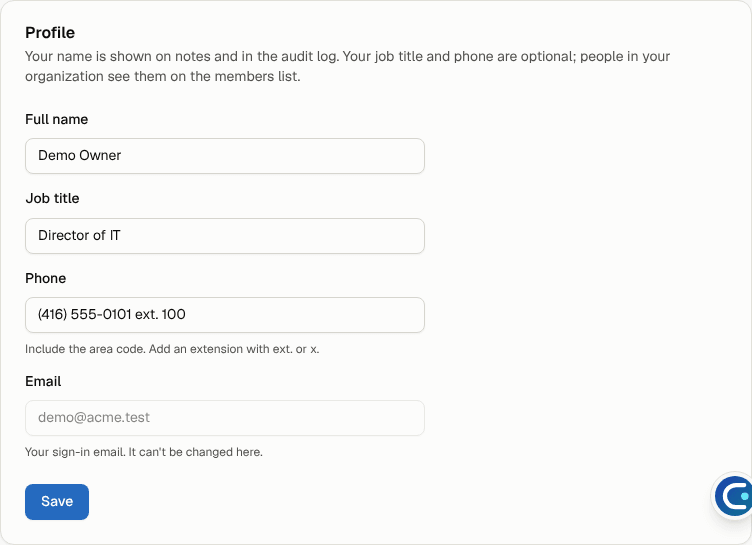
Under the phone field, Conduit TEM shows how your number will appear, such as "Saved as (416) 555-0100 ext. 22". If it can't read the number, it says so and nothing is saved until you fix it. To remove your title or phone, clear the field and select Save.
Who sees your title and phone
- People in your organization see them next to your name on Settings → Members & invitations. If you belong to more than one organization, each one sees them on its own list.
- Conduit staff who support your organization.
- Nobody else. They never appear on public pages such as the bill check, the status page or the Help centre.
Change your name
Your name is shown on notes, approvals and in the activity log. Change it on the Profile card and select Save.
Your sign-in email
The Email field shows the address you sign in with. It can't be changed here. To use a different address, ask an owner or admin of your organization to invite it, then sign up with it.
Change your password
- On the Password card, enter your Current password and a New password of at least 8 characters.
- Select Change password.
Your other devices are signed out, so a lost laptop or phone loses access too.
Light or dark
Under Appearance, choose Light, Dark or System to follow your device. It applies straight away on this device.